
Adding a Widget to Your Home Screen
A widget shows watched prices and recent drops at a glance, without opening SmartTracker. Widgets are available on the Home Screen and Lock Screen on iPhone and iPad, and in Notification Center on Mac.
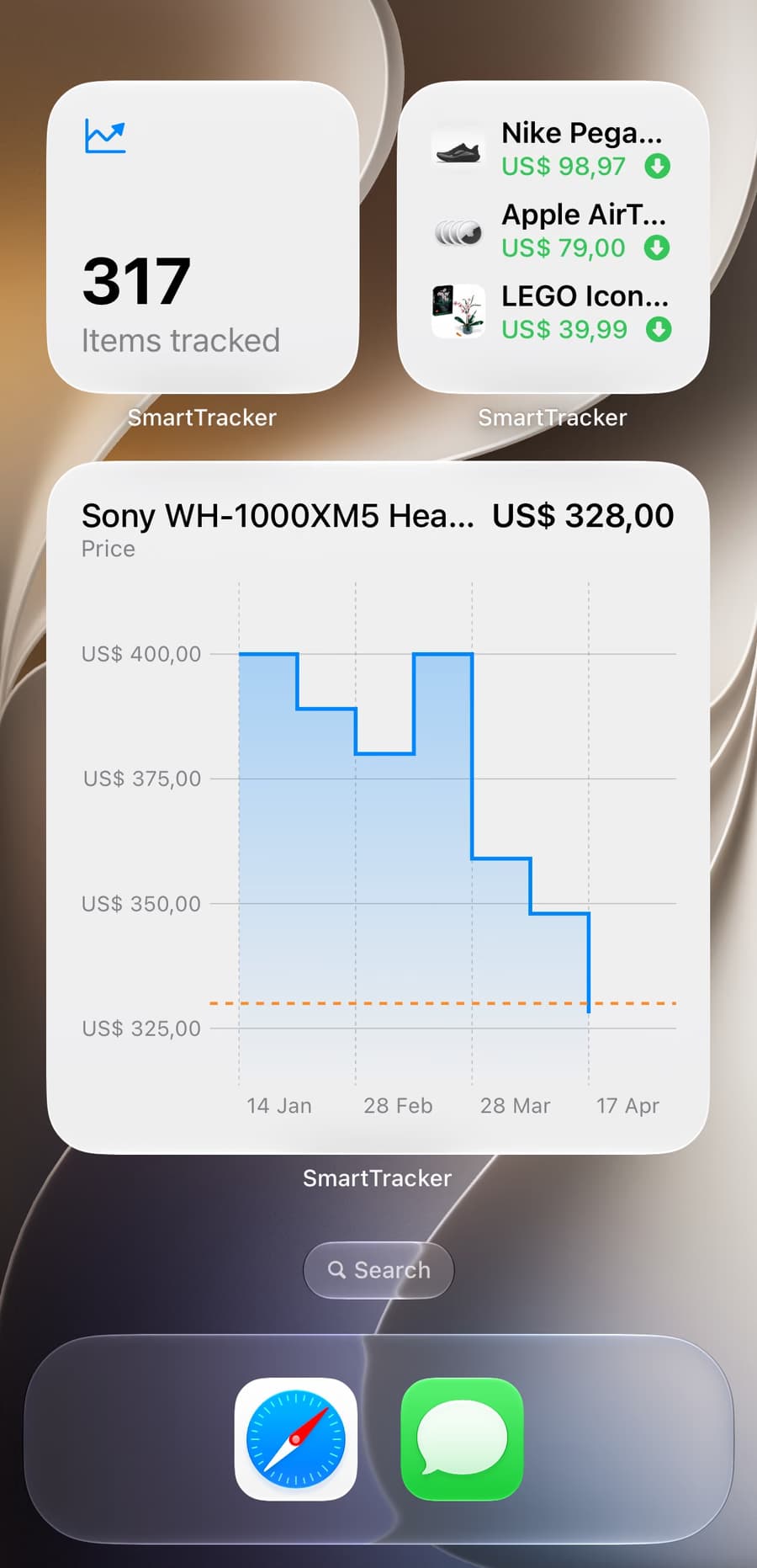
Adding one
On iPhone and iPad:
- Touch and hold an empty area of the Home Screen until the icons jiggle.
- Tap + in the corner.
- Find SmartTracker in the list.
- Pick a size and tap Add Widget.
On Mac:
- Click the date and time in the menu bar to open Notification Center.
- Scroll to the bottom and click Edit Widgets.
- Choose SmartTracker.
Those opening steps are Apple's, not ours, and they change between OS versions. If your screen doesn't match, Apple documents adding widgets on iPhone (opens in a new tab) and adding widgets on Mac (opens in a new tab).
Choosing what a widget shows
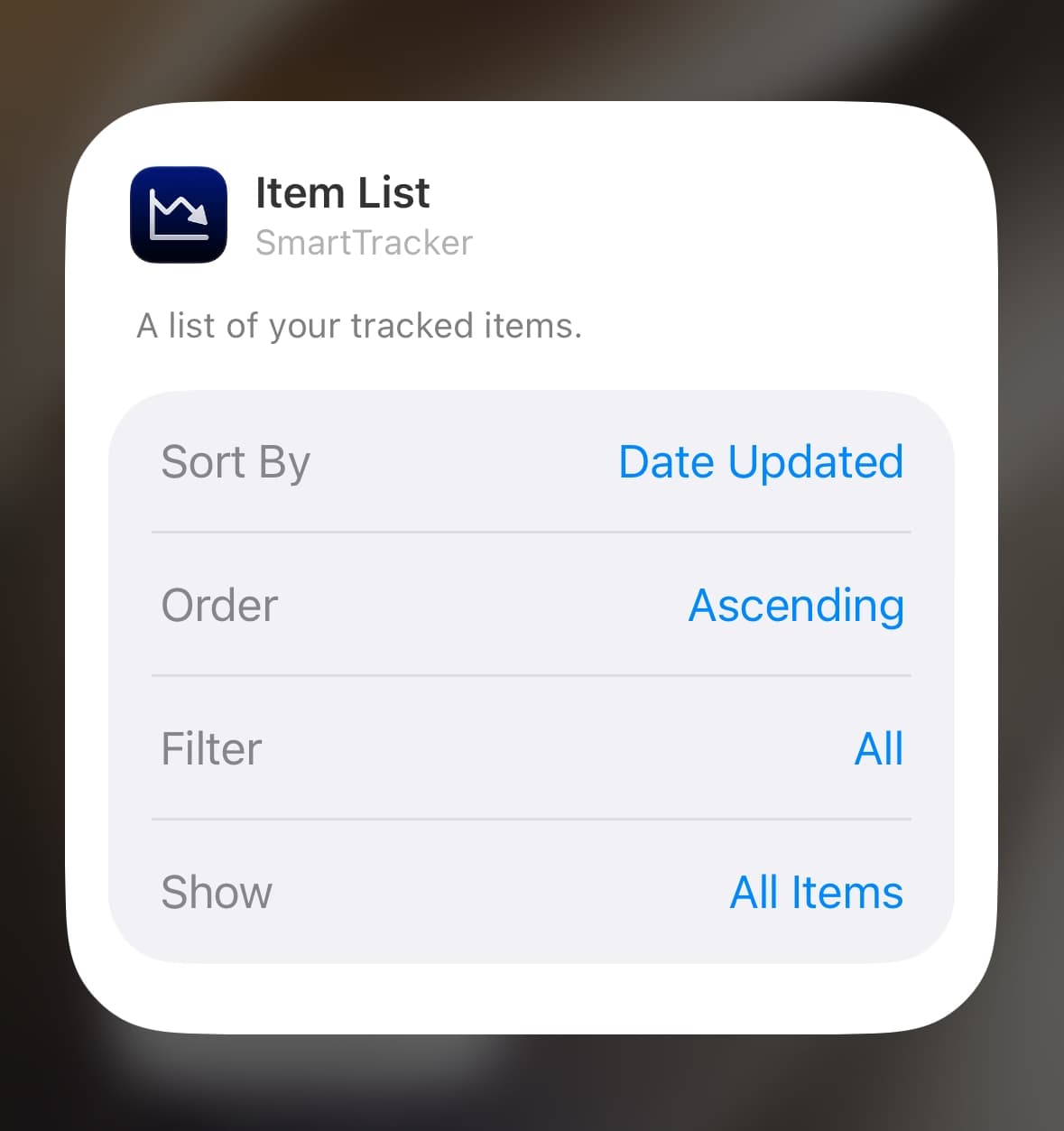
A freshly added widget shows your most recently changed items. To point it at a specific collection instead, touch and hold the widget (or right-click it on Mac), choose Edit Widget, and pick the collection you want.
You can add more than one widget with different collections: a small one for the thing you are actually waiting on, a larger one for everything else.
When the numbers update
A widget shows the last price SmartTracker recorded, not a live reading. It does not check the page itself. The number changes when the app next refreshes that item, which on iPhone and iPad depends on how the system schedules background work.