
Adding an Item from Safari
The share extension puts SmartTracker in the share sheet, so a product page you are already looking at becomes a tracked item without copying the URL or switching apps.
Using it
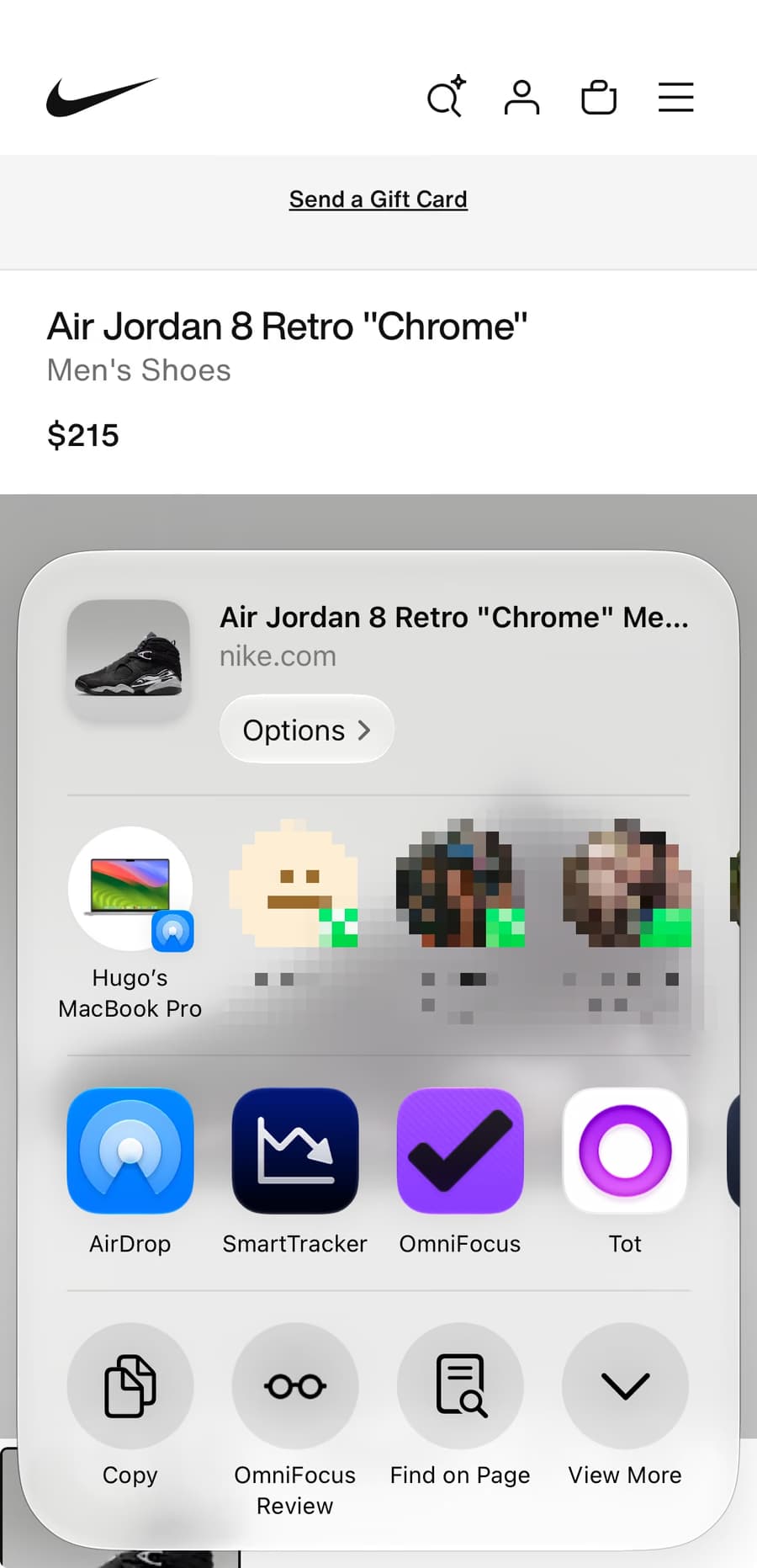
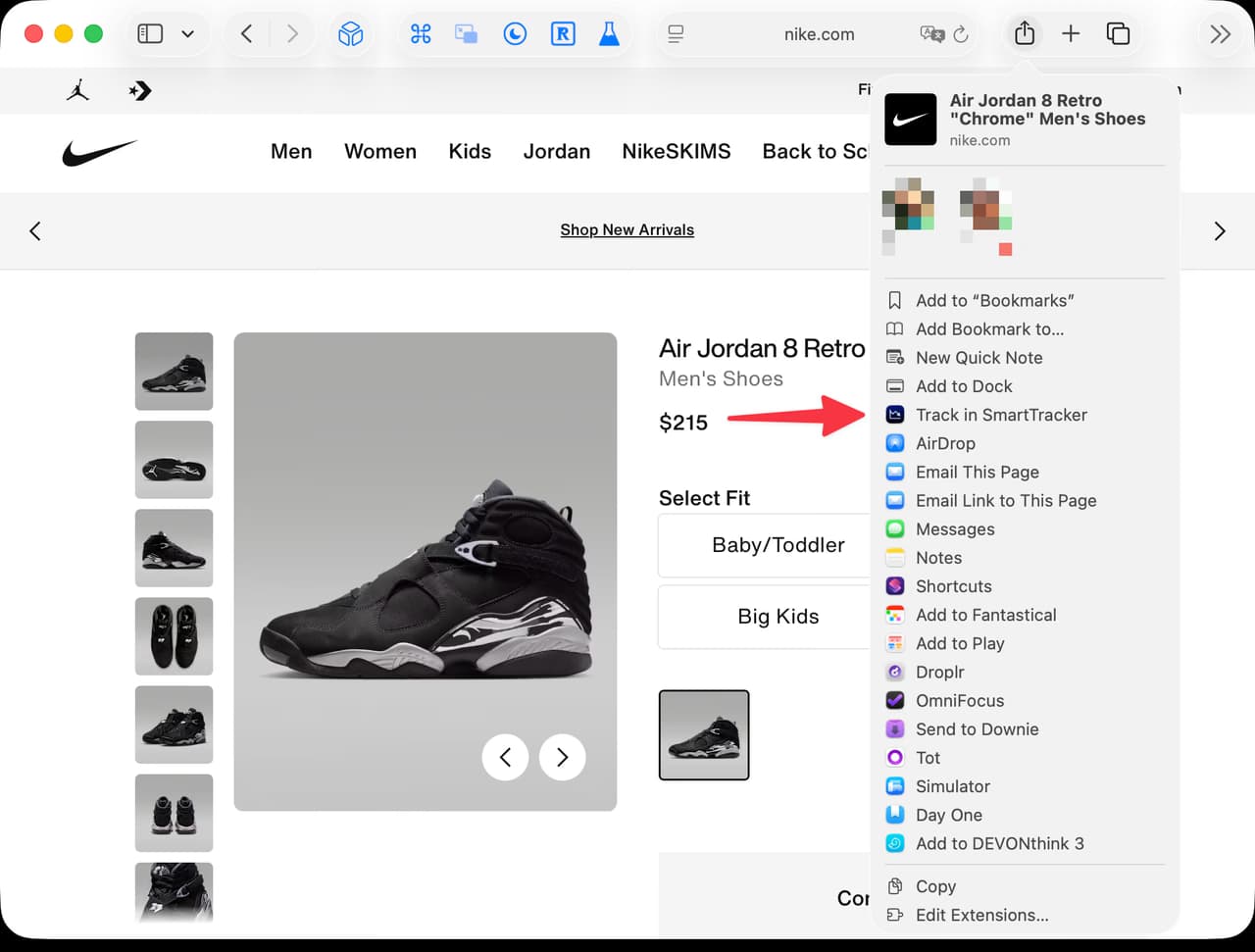
From a product page in Safari on iPhone or iPad, tap the Share button, then tap SmartTracker in the row of apps. On Mac, click the Share button in the toolbar and choose Track in SmartTracker.
SmartTracker opens with the page loaded and waits for you to pick the price, exactly as it would if you had pasted the URL yourself.
If SmartTracker isn't in the share sheet
On iPhone and iPad, the share sheet hides apps you have not used from it before. Scroll the app row to the end and tap More, find SmartTracker in the list, and turn it on. Drag it upward in that list to move it nearer the front.
On Mac the setting isn't in the menu at all: sharing extensions are turned on in System Settings. Apple documents the Share menu on Mac (opens in a new tab), including how to change what appears in it.
It also works from any app that shares a URL, not just Safari. A link in Messages, Mail, or a store's own app all work the same way.